Managing leads is one of the biggest challenges for growing businesses. Every day, sales teams receive inquiries from potential customers, but not every lead is equally ready to make a purchase.
Some prospects have a clear budget and want to get started immediately. Others are researching solutions or planning for a future project.
So how can a business identify its most promising leads without manually reviewing every contact?
HubSpot Lead Scoring helps solve this problem.
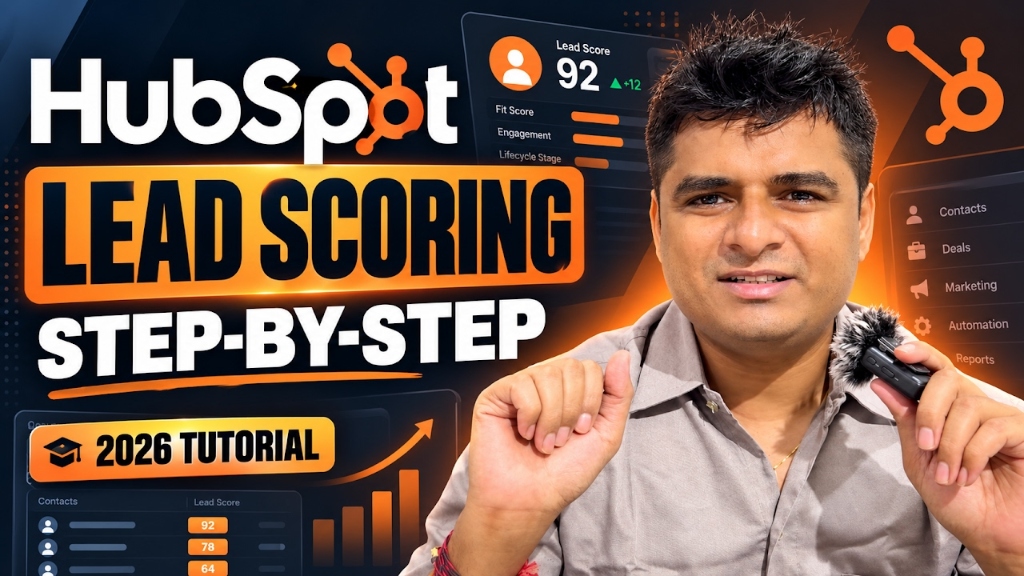
In this step-by-step tutorial, you’ll learn how to build a custom HubSpot Fit Score using contact properties, scoring groups, group limits, and score thresholds.
We’ll also test the system using example contacts to understand how HubSpot automatically calculates lead scores.
Watch the complete video tutorial: How to Set Up HubSpot Lead Scoring (2026)
Watch the Complete Video Tutorial
What Is HubSpot Lead Scoring?
HubSpot Lead Scoring is a CRM feature that assigns numerical values to leads based on predefined criteria.
These criteria help businesses evaluate which contacts are a good match for their products or services.
For example, a business providing CRM implementation and automation services might evaluate leads using:
- Project Budget: How much is the prospect planning to invest?
- Buying Timeline: How soon does the prospect want to start?
- Service Interest: Which service is the prospect looking for?
By assigning points to these factors, businesses can create a consistent lead qualification process.
Instead of relying only on individual judgment, sales teams can use scoring data to prioritize follow-up activities.
Understanding Fit Score vs. Engagement Score
HubSpot supports different approaches to lead scoring.
Fit Score
A Fit Score evaluates how closely a contact matches a business’s ideal customer profile.
It commonly uses CRM property values such as industry, company size, budget, location, or service interest.
For example, a prospect with a higher project budget and an immediate buying timeline may receive a higher Fit Score.
Engagement Score
An Engagement Score evaluates a prospect’s interactions with a business.
Depending on the configured rules, these can include actions such as form submissions, email interactions, or website activity.
Which One Are We Using?
For this tutorial, we’re building a Contact Fit Score.
Our model uses three contact properties:
- Project Budget Band
- Buying Timeline
- Service Interest
This makes the example practical for agencies, CRM consultants, automation providers, and other service-based businesses.
Step 1: Create a New Fit Score in HubSpot
To begin, log in to your HubSpot account.
Navigate to:
Marketing → Lead Scoring
Depending on your HubSpot interface, you may need to open More first.
Click Create score.
Select Contacts, then choose Contact fit score.
Create the score and give it a descriptive name.
For this demonstration, we’ll use:
ABC - Lead Scoring Tutorial
A clear naming convention is important, especially when your CRM contains multiple scoring models for different teams or business units.
Step 2: Configure the Budget Fit Scoring Group
Our first scoring group evaluates the prospect’s project budget.
Click Add property group and name it:
Budget Fit Scoring
Select the contact property:
Project Budget Band
Configure the following scoring rules:
| Project Budget | Points |
|---|---|
| ₹100k+ | +25 |
| ₹30k–₹99k | +15 |
| Unknown or unmatched | 0 |
Set the Group Limit to 25 points.
Why Does Budget Matter?
Budget can help a business identify prospects whose requirements are financially aligned with its services.
For example, a project with a budget above ₹100,000 may receive 25 points, while a smaller qualifying project receives 15 points.
However, budget should not be the only factor determining a lead’s value.
A smaller project may still be a valuable long-term business opportunity.
That’s why we’re combining budget with other qualification criteria.
Step 3: Configure the Buying Timeline Group
Next, create another property group.
Name it:
Buying Timeline Fit
Select the contact property:
Buying Timeline
Add these rules:
| Buying Timeline | Points |
|---|---|
| Within 30 days | +20 |
| 31–90 days | +10 |
| Other or unmatched | 0 |
Set the Group Limit to 20 points.
Why Is Buying Timeline Important?
A contact planning to start within 30 days may require more immediate sales attention than someone exploring options for a future project.
For service businesses, buying timeline helps differentiate urgent opportunities from longer-term prospects.
By including this factor in our scoring model, we can give higher priority to leads that are closer to making a decision.
Step 4: Configure the Service Interest Group
Our third scoring group evaluates which service the prospect is interested in.
Create another property group and name it:
Service Interest Fit
Choose the contact property:
Service Interest
Configure these rules:
| Service Interest | Points |
|---|---|
| HubSpot CRM | +20 |
| AI Automation | +20 |
| WordPress Website | +10 |
Set the Group Limit to 20 points.
What Is a Group Limit in HubSpot?
A group limit controls the maximum number of points that a scoring group can contribute to the total score.
For example, suppose multiple qualifying service-interest rules apply to the same contact.
Without an appropriate limit, the contact might receive more service-interest points than intended.
By setting the Service Interest group limit to 20, we ensure this category contributes no more than 20 points.
This helps maintain a balanced scoring model.
Our Complete Scoring Model
| Scoring Group | Maximum Points |
|---|---|
| Budget Fit | 25 |
| Buying Timeline Fit | 20 |
| Service Interest Fit | 20 |
| Maximum Possible Score | 65 |
Our demo model can therefore award a maximum of 65 points, based on the configured positive rules and group caps.
The scoring ranges configured in HubSpot can be broader than the maximum currently reachable under these rules.
Step 5: Configure Lead Score Thresholds
Once the scoring groups are ready, we need to define how HubSpot categorizes the contacts.
Instead of requiring the sales team to interpret every numerical score, we can create clear priority labels.
In the score settings, open Score thresholds.
For this demonstration, use:
| Score Range | Priority |
|---|---|
| 45–100 | High |
| 20–44 | Medium |
| -100–19 | Low |
High-Priority Leads
These contacts have the strongest overall match with our qualification criteria.
For example, a prospect with a high budget, immediate timeline, and relevant service interest could receive 65 points.
Medium-Priority Leads
These contacts meet some of our criteria but may require additional qualification or a standard follow-up process.
Low-Priority Leads
These contacts receive fewer points based on the available information.
A Low rating does not automatically mean the contact is unqualified.
It may simply mean the CRM needs additional information or that the opportunity is at an earlier stage.
Important: These thresholds are examples for our demo business. Real companies should customize their scoring ranges based on their sales process, target customers, and historical performance.
Step 6: Choose Which Contacts Should Be Scored
Before activating the scoring system, determine which contacts should be included.
HubSpot allows you to score all eligible contacts or select specific records through segments.
For our tutorial, we selected:
Score specific contacts
We created a demo segment named:
ABC Demo Contacts
This is a static segment, which means contacts need to be added to its membership manually.
Using a dedicated demo segment helps us test the scoring model without applying it to every contact in the CRM.
For a production implementation, businesses can choose a more appropriate scoring audience based on their operational requirements.
Step 7: Review and Activate the Lead Score
After configuring the scoring criteria, limits, and thresholds, review the model carefully.
Check that:
- Each scoring group uses the correct contact property.
- The point values match your qualification strategy.
- Group limits are set correctly.
- Threshold ranges match your intended lead priorities.
- The selected contacts are eligible for scoring.
HubSpot also provides tools for testing records and previewing score distribution.
Once the setup is ready, click Review and turn on to activate the score.
HubSpot creates properties to store the numerical score and its threshold category.
In our demonstration, these are:
- Numerical Score Property: ABC - Lead Scoring Tutorial
- Threshold Property: ABC - Lead Scoring Tutorial threshold
These properties can later be used for CRM views, segments, workflows, and reporting.
Step 8: Test HubSpot Lead Scoring with Demo Contacts
Creating a scoring model is only the first step.
We also need to verify that the rules produce the expected results.
Let’s look at three practical examples.
Example 1: High-Priority Lead
Suppose a prospect has the following information:
| Qualification Criteria | Value | Points |
|---|---|---|
| Project Budget | ₹100k+ | 25 |
| Buying Timeline | Within 30 days | 20 |
| Service Interest | AI Automation | 20 |
| Total | 65 |
Final Score: 65
Lead Rating: High
This contact matches our strongest qualification criteria.
Under our model, it should receive a High rating.
Example 2: Medium-Priority Lead
Now consider a contact with the following information:
| Qualification Criteria | Value | Points |
|---|---|---|
| Project Budget | Unknown | 0 |
| Buying Timeline | Within 30 days | 20 |
| Service Interest | WordPress Website | 10 |
| Total | 30 |
Final Score: 30
Lead Rating: Medium
This prospect has a near-term buying timeline but does not yet have a confirmed budget.
The model places the contact in our Medium-priority category.
Example 3: Low-Priority Lead
Consider a contact whose only matching criterion is WordPress Website service interest.
The contact receives:
10 points
This falls within our Low-priority range.
The sales team may need to collect more information before deciding how to proceed.
How to Verify the Result in HubSpot
Open a test contact in your CRM and locate the score properties.
Check both:
- The numerical Fit Score.
- The corresponding High, Medium, or Low threshold.
Change a relevant test property, such as the Buying Timeline, and check whether HubSpot recalculates the score correctly.
In our practical demonstration, we verified that the scoring model responded to contact property changes and produced the expected priority ratings.
Why Lead Scoring Matters for Businesses
A well-designed lead scoring system can support several important business processes.
1. Better Sales Prioritization
Sales representatives can focus first on contacts that match the company’s qualification criteria.
2. Consistent Lead Qualification
A shared scoring model reduces differences in how individual team members evaluate similar opportunities.
3. Improved Marketing and Sales Alignment
Marketing and sales teams can agree on what makes a lead valuable and use the same CRM data when making decisions.
4. More Effective CRM Automation
Lead scores can be used as conditions inside HubSpot workflows.
For example, companies can create different processes for High-, Medium-, and Low-priority contacts.
5. Measurable Lead Quality
Businesses can review score distributions, track lead outcomes, and refine their scoring criteria over time.
However, a higher score is not a guarantee that a prospect will become a customer.
A scoring model should be reviewed regularly against actual business results.
Common HubSpot Lead Scoring Mistakes to Avoid
When building a scoring model, keep these points in mind:
- Using too many scoring criteria: Start with a small number of meaningful business signals before introducing additional complexity.
- Ignoring group limits: Poorly balanced groups can give excessive weight to one qualification factor.
- Setting arbitrary thresholds without testing: Review real lead examples to check whether High, Medium, and Low categories make sense.
- Using incomplete CRM data: Missing or outdated property values can affect scores.
- Applying a demo model to the entire database: Test with a controlled group of contacts before expanding the scoring audience.
- Never reviewing performance: As customer behavior and sales priorities change, your scoring model may also need adjustments.
Frequently Asked Questions
What is a Fit Score in HubSpot?
A Fit Score evaluates contacts based on how closely their CRM information matches your ideal customer criteria, such as budget, timeline, industry, or service interest.
What is the difference between a score limit and a group limit?
A score limit controls the overall scoring range, while a group limit controls how many points an individual scoring group can contribute.
Can HubSpot automatically update lead scores?
Yes. After a scoring model is activated, HubSpot can update score properties when relevant contact information or qualifying activities change.
Can I use lead scores in HubSpot workflows?
Yes. Lead score properties and their threshold labels can be used to support workflow conditions, lead routing, follow-up automation, and other CRM processes.
Does a High score guarantee a sale?
No. Lead scoring is a prioritization method, not a guarantee of conversion. Scores should be used alongside sales conversations and other business information.
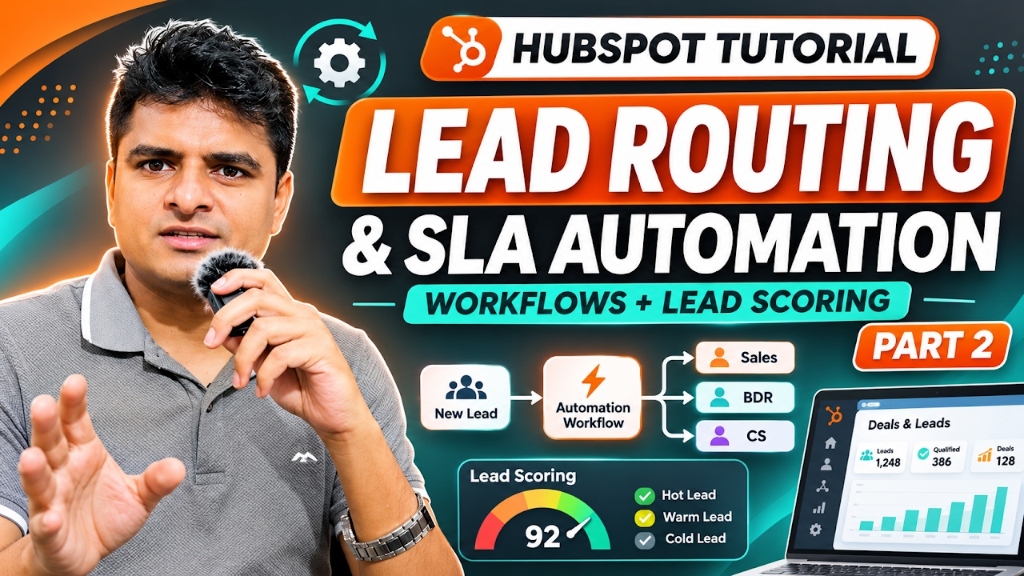
What’s Next? Lead Routing and SLA Automation
Now that we’ve built a functional Lead Scoring system, the next question is:
What should happen after a contact receives a High, Medium, or Low rating?
This is where Lead Routing and SLA Automation become useful.
In the next tutorial, we’ll connect our existing Lead Scoring model with HubSpot workflows.
You’ll learn how to:
- Route contacts based on their priority rating.
- Assign sales owners automatically.
- Create follow-up tasks.
- Configure a two-hour response monitoring process.
- Set up conditional escalation notifications.
- Verify actual workflow execution.
Watch Part 2: HubSpot Lead Routing & SLA Automation Tutorial
Final Thoughts
HubSpot Lead Scoring helps businesses move from manual lead evaluation toward a more structured and data-driven qualification process.
In this tutorial, we created a Fit Score based on Project Budget, Buying Timeline, and Service Interest.
We configured individual scoring groups, applied group limits, defined High-, Medium-, and Low-priority thresholds, and tested the model using demo contacts.
The result is a practical lead qualification foundation that can support future CRM automation.
Whether you’re a business owner, HubSpot consultant, marketing professional, or Revenue Operations specialist, understanding lead scoring is an important step toward building a more organized sales process.
Watch the full HubSpot Lead Scoring video tutorial: View on YouTube
Next Step: Learn how to automate lead routing and SLA monitoring in Part 2: HubSpot Lead Routing & SLA Automation
For more practical tutorials on HubSpot CRM, Revenue Operations, API integrations, and AI-powered business automation, explore the other guides on this website.